Quick Answer
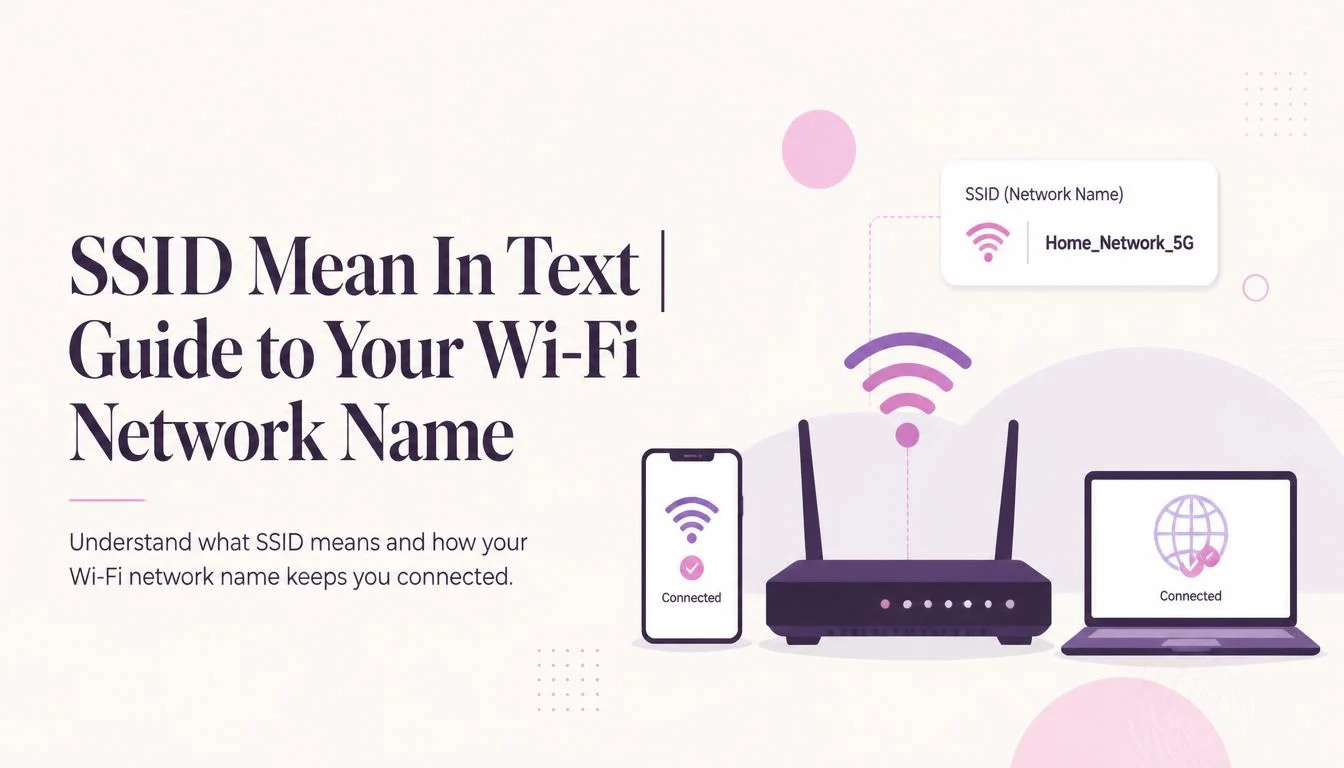
SSID Mean in Text usually refers to Service Set Identifier, the name that identifies a Wi-Fi network. In casual text, however, its meaning can vary depending on the context.
If you’re wondering what SSID Mean in Text, the most common meaning is Service Set Identifier. It’s the name you see when choosing a Wi-Fi network on your phone, laptop, or other device.
Understanding SSID Mean in Text can help you recognize whether someone is talking about a Wi-Fi connection or using the abbreviation in a different context. Here’s a simple look at its meaning, usage, and common examples.
SSID Meaning: Definition and Purpose
SSID stands for Service Set Identifier. In plain English, it’s simply the name of your Wi-Fi network. It’s the friendly, human-readable label that appears on your device when you open the Wi-Fi settings and see a list of available connections.
Think of it like the name on a storefront. Just as a business needs a sign so customers can find it, your wireless router broadcasts its SSID so your devices like your phone, laptop, or smart TV can find and connect to the right network.
The “Service Set” part refers to all the devices that make up a wireless network (like your router and your laptop). The “Identifier” is simply the name that sets that specific group of devices apart from all the other Wi-Fi networks buzzing around your home or office. The purpose is pretty straightforward: to help differentiate one Wi-Fi network from another so that you can choose the correct one to connect to.
💡 Quick Takeaway: When someone asks you, “What does SSID mean?” you can confidently say, “It’s the name of my Wi-Fi.
How Does an SSID Work? The Technology Behind the Name
While we often think of Wi-Fi as an invisible magic, the process behind that simple network name you see on your screen involves a fascinating series of handshakes and signals. Think of it like a friendly introduction at a party.
First, your wireless router, or access point, is configured with a specific name (the SSID). Then, it does something crucial: it “shouts” that name out to the neighborhood. It does this by periodically broadcasting management frames, often called “beacons,” to the airwaves. These beacons contain the SSID, letting nearby devices know the network exists and is ready for a connection.
Now, let’s look at what happens on your phone or laptop. Your device constantly “listens” for these beacons (this is called a passive scan). It can also actively yell back, “Hello, are there any Wi-Fi networks here?” by sending out what’s known as a probe request.
When you check your Wi-Fi settings, you see a list of SSIDs that your device has discovered. You then tap or click on the one you want (say, “My_Home_WiFi”).
Here’s what happens next:
- Selection: You choose the correct SSID from the list. Your device pairs this choice with its saved profile, which includes crucial details like security settings (WPA2, WPA3) and, if you’ve connected before, the password.
- Association: Your device makes contact with the access point that is broadcasting that specific SSID and initiates the association process. This builds the basic relationship needed to start exchanging data.
- Security & Authentication: If the network is secured (and it always should be!), your device and the router will negotiate a secure handshake, verify the password, and establish encryption keys. Once this is done, you’re officially online.
💡 Pro Tip: If there are multiple access points in a large building (like a school or office) and they all share the same SSID, your device can move from one to another and reconnect to the strongest signal. This is how you get seamless roaming!
Finding Your SSID: A Step-by-Step Guide
Need to quickly find your SSID? Here’s how to look it up, depending on your device.
On Your Router
This is the easiest method. Your router will have a sticker on its bottom or back. Look for a label with your network name next to “SSID,” “Network Name,” or “Wireless Network Name.”
On Windows
Click on the Wi-Fi icon in the system tray (bottom-right of your screen). The name of the network you are connected to will be highlighted at the top of the list.
On Mac
Click on the Wi-Fi icon at the top-right of your screen. The network name you’re connected to will have a checkmark next to it.
On Android
Open the Settings app, then go to Network & Internet (or “Connections”), and tap on Internet or Wi-Fi. Your currently connected SSID will be listed at the top, with a “Connected” status.
On iPhone or iPad
Open the Settings app and tap on Wi-Fi. Your connected network will have a blue checkmark next to its name.
SSID vs. Password: What’s the Difference?
One of the most common points of confusion is mixing up the SSID with the Wi-Fi password. They are two entirely different things.
Let’s break this down in a simple table.
SSID vs. BSSID and MAC Address
It’s also worth knowing that the SSID isn’t the only identifier in your Wi-Fi gear.
- BSSID: This is the physical address (MAC address) of your router’s access point. While you can have one SSID for a large network, each individual router or access point has its own unique BSSID. Your device sees this behind the scenes to distinguish between different routers that might have the same SSID.
- Wi-Fi Address (MAC Address): This is a unique, permanent hardware identifier for the network card in your phone, laptop, or other Wi-Fi device.
💡 Pro Tip: Don’t worry too much about BSSID and MAC addresses they’re handled automatically by your device. The SSID is the one you need to know and manage.
SSID Naming: Best Practices and Security Tips
Your SSID is like a welcome mat or a warning sign. What you name your Wi-Fi network matters more than you might think, both for user-friendliness and security.
The Good, The Bad, and The “Hacker Bait”
When you get a new router, it comes with a default SSID, which is usually the brand name followed by a string of random characters (e.g., “Linksys-8Tp1”).
- The Good: A user-friendly name clearly identifies your network so you can easily find and connect your devices. Examples include:
- The Bad: Generic or unclear names cause confusion, especially in apartment buildings or busy office spaces. For instance, “Wi-Fi” or “Network” doesn’t help you figure out which network is yours.
- The “Hacker Bait” (The Ugly): This is where it gets dangerous. Naming your network something specific like “Payment Terminal Network,” “Admin_Control,” or “Patient Records” is a terrible idea. It’s like hanging a sign on your door that says, “Valuables inside, crack me open!” It literally tells a hacker which network to target to get the most valuable data.
Best Practices for a Safe and Smart SSID
- Change It Immediately: The first thing you should do when setting up a router is to change the default SSID. Hackers know the default names for every router brand. If you keep “Linksys” or “Netgear” as your network name, it reveals the hardware you’re using, making it easier for an attacker to find known vulnerabilities.
- Be Descriptive, Not Too Descriptive: Find a balance. Good examples include “Family_Network,” “My_Condo_5G,” or “Business_Guest.”
- Don’t Include Personal Info: Avoid using your full name, birthdate, or home address. While these are safe from a technical hacking standpoint, they make it easier for someone to identify your physical location.
- Case Sensitivity Matters: SSIDs are case-sensitive. “HomeWiFi” and “homewifi” are considered two completely different networks. If you change your SSID, remember the exact capitalization, especially if you need to type it in to connect a new device.
Should You Hide Your SSID?
Some routers offer an option to “hide” or “disable broadcast” of your SSID, so it won’t appear in the list of available networks. While it might feel like a secret agent move, security experts advise against it.
Here’s why:
- It just takes two seconds to circumvent. Hiding it only prevents it from showing up on your neighbor’s phone. Hackers have tools that easily sniff out these hidden network names.
- It’s a hassle. Every time you want to connect a new device, you’ll have to manually type in the exact case-sensitive SSID and password. For every friend, family member, or new gadget, this becomes a huge headache.
- In short: relying on hiding your SSID for security is like trying to hide your car by covering it with a blanket it’s ineffective.
💡 Pro Tip: Your security shouldn’t rely on obscurity. Use a unique SSID, and most importantly, make sure you’re using WPA2 or WPA3 encryption with a strong, complex password.
Attack Vectors: How Hackers Use SSIDs
While the SSID itself is just a label, cybercriminals use it as a weapon to fool you. The most common threat is the “Evil Twin” attack, and the SSID is the bait.
Imagine you’re at a coffee shop. You open your Wi-Fi settings and see two networks: “OfficialCoffeeWiFi” and “FREE_Coffee_WiFi_5G.”
- The Real One: “OfficialCoffeeWiFi” is the shop’s legitimate network, secured with a password.
- The Evil Twin: “FREE_Coffee_WiFi_5G” is the hacker’s router. They’ve named it something tempting and similar to the real network to trick you into connecting.
Once you connect to this fake network, the hacker can position themselves between you and the internet. They can:
- Steal your data. Any information you send (passwords, credit card details, emails) flows right through their system.
- Inject malware. They can send malicious software to your device.
- Phish for login details. They can create fake login pages that look like a Google or Facebook login to harvest your credentials.
⚠️ Important Security Tip: Always be cautious when connecting to public Wi-Fi. Confirm the exact name of the network with a staff member. If you have to connect, use a VPN to encrypt your data. And never, ever enter banking or sensitive information when you’re on public Wi-Fi.
FAQs
FAQs
1. What does SSID mean?
SSID stands for Service Set Identifier. It is the name assigned to a Wi-Fi network, allowing devices to recognize and select the network they want to connect to.
2. Is my SSID the same as my password?
No. Your SSID is the Wi-Fi network name, while your password is the security key used to connect to that network. They serve two completely different purposes.
3. Can I change my SSID?
Yes. You can usually change your SSID by signing in to your router’s administrator settings through a web browser or app. Look for the wireless or Wi-Fi settings and enter a new network name.
4. What is a hidden SSID?
A hidden SSID is a Wi-Fi network whose name is not publicly broadcast. It may not appear in the normal list of available networks, so you typically need to enter the network name manually when connecting.
5. Is SSID case-sensitive?
Yes. SSID names are case-sensitive, meaning “HomeWiFi” and “homewifi” are treated as different network names.
6. How many characters can an SSID have?
An SSID can contain up to 32 characters. Wi-Fi names can commonly include letters, numbers, spaces, and various symbols, depending on the router and device.
7. What if two networks have the same SSID?
Two Wi-Fi networks can have the same SSID. If their security settings are compatible, a device may choose between them based on factors such as signal strength and network behavior. Using a distinctive name can make it easier to identify the correct network.
8. Does my SSID affect my internet speed?
No. Your SSID is simply the name of your Wi-Fi network and does not directly determine internet speed. Speed is influenced by factors such as your internet plan, router performance, Wi-Fi signal quality, interference, and network congestion.
Conclusion:
The SSID meaning might seem like a small detail, but it’s the gateway to a better internet experience. Understanding this simple concept that it’s just your Wi-Fi name helps you navigate Wi-Fi settings with confidence.
To summarize, here are the key takeaways to remember:
- Know What It Is: SSID means the Service Set Identifier, which is the name of your Wi-Fi network.
- Find It Easily: You can find it on the sticker on your router, or in the Wi-Fi settings on any of your devices.
- Secure Your Network: Change the default SSID immediately and make sure you use a strong, unique password.
- Stay Safe in Public: Always verify the name of a public Wi-Fi network with staff before connecting to avoid “Evil Twin” attacks.
- Keep It Clean: Use a friendly but non-specific name that helps you identify your network without giving away sensitive information.
Now that you know what an SSID is and how to find it, take a moment to check your own Wi-Fi network name. Are you still using a default name? It takes less than five minutes to log into your router and give it a unique, safe name that is all your own. It’s a small step that makes a big difference in the security and usability of your home internet.
Read More Related Articles:
- JSP Meaning | Internet Acronym Everyone Gets Wrong In 2026
- What Does WTM Mean in Text | Common Uses You Should Know In 2026
- What Does ACC Mean | Every Meaning Made Simple In 2026











2 thoughts on “SSID Mean In Text | Guide to Your Wi-Fi Network Name In 2026”